
Blog & guides
iPad Unavailable

Short answer: If your screen says “iPad Unavailable”, the passcode has been entered wrongly too many times. If a waiting time is shown, wait it out and try again with the correct code. If the iPad is locked completely, you have to erase it – either from the Lock Screen with your Apple ID, or using a computer. Erasing deletes everything, so your data can only come back from a backup.
What does it cost?
You always get a fixed price before we start. See the price for your exact model in the price finder.
Fixed price before we startNo payment online
Why does it say “iPad Unavailable”?
The iPad is protecting your data from anyone who isn’t allowed in. Every wrong passcode makes the temporary lockout longer. After enough failed attempts, it locks completely and has to be reset.
How to get back into your iPad
Does it say “Try again in X minutes”?
- Wait for the time shown on the screen.
- Enter the correct passcode slowly and carefully, so the waiting time doesn’t get even longer.
Reset from the Lock Screen
On newer versions of iPadOS you’ll see “Forgot passcode?” or “Erase iPad” at the bottom of the screen. You’ll need the password for your Apple ID, and the iPad has to be connected to Wi-Fi or mobile data.
Step by step:
- Make sure the iPad is on Wi-Fi or mobile data.
- Keep entering the passcode until you see “iPad Unavailable” or “Security Lockout”.
- Tap “Forgot passcode?” or “Erase iPad” at the bottom of the screen.
- Enter your Apple ID password. The iPad will now be erased.
- When it starts up again, sign in with the same Apple ID and choose to restore your backup from iCloud or your computer.
Can’t see the button? Then use the computer method below.
Reset using a computer
- Turn off the iPad.
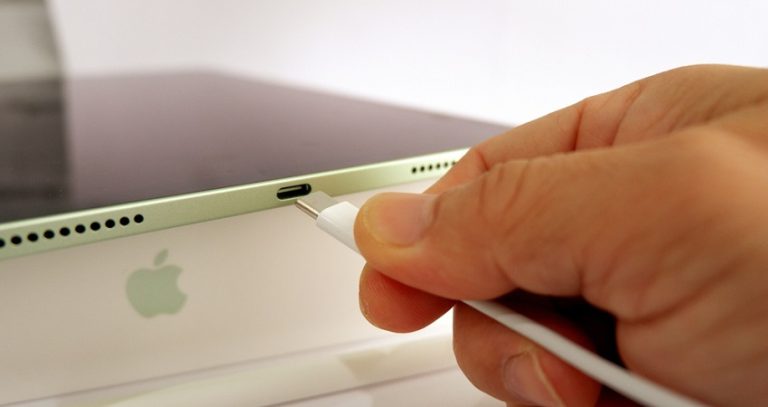
- Connect it to a Mac (Finder) or a PC (iTunes or Apple Devices) and put it into recovery mode. The buttons depend on the model:
- iPad without a Home button: hold the top button while you plug in the cable.
- iPad with a Home button: hold the Home button while you plug in the cable.
- Choose “Restore” on the computer. The iPad is erased and gets the latest version of iPadOS.
- Sign in with your Apple ID and choose to restore from a backup, or set it up as new.
Important: Apple ID and Activation Lock
After a reset, the iPad will ask for the Apple ID it was signed in with before. This is a security feature, and it can’t be bypassed without the owner’s details. Make sure you have your Apple ID and password ready before you reset.
Does your iPhone say “Unavailable”?
It works the same way on an iPhone: wait if it says “Try again in …”, and otherwise erase it from the Lock Screen or using a computer with your Apple ID. If your iPhone won’t turn on at all, read iPhone won’t turn on.
Get help from ITech-Rep
Can’t solve it yourself, or not sure what to do? Get in touch with ITech-Rep. We have many years of experience with Apple products such as iPads and iPhones, and we help customers in our shops in Odense and Nyborg. If your iPad has other problems, see iPad repair for the most common faults we fix.
Questions about “iPad Unavailable”
Can ITech-Rep unlock my iPad without the Apple ID?
No. After a reset, the iPad asks for the Apple ID it was signed in with, and nobody can get around that. If you’ve forgotten the password, you can reset it with Apple. If you know your Apple ID, we’re happy to help – book a time or call +45 52 70 70 28.
Can I unlock an iPad without losing my data?
Only if you remember the passcode. Otherwise the iPad has to be reset, and your data can only come back from an iCloud or computer backup.
How long do I have to wait when the iPad is locked?
The iPad shows the waiting time itself. It gets longer with every wrong attempt, so enter the code carefully.
What do I do if I’ve forgotten my Apple ID?
Reset your Apple ID password on Apple’s website or on another Apple device. Without the Apple ID, the iPad can’t be used again after a reset.
Can you help me reset my iPad?
Yes – get in touch and we’ll look at what’s needed. You must know your own Apple ID. See prices, or call +45 52 70 70 28.
Need help? Book a time online in Odense or Nyborg, call +45 52 70 70 28, or visit one of our shops in Odense and Nyborg.
Related repairs
Need help?
We repair in our own workshop in Odense and Nyborg
See the price of your repair, or call – you’ll talk to a technician.